
You found a stunning AI image and you want to know exactly how it was made: the prompt, the negative prompt, the seed, the sampler, the checkpoint. Or you are about to publish your own renders and you want to check what is quietly riding along inside the file first.
Either way, the answer is usually sitting in plain text inside the image itself. Stable Diffusion (AUTOMATIC1111, Forge, ComfyUI, InvokeAI), Midjourney, DALL-E 3, and Adobe Firefly all write generation settings into the file container alongside the pixels. This guide shows you every reliable way to read that data, what each field means, and why it sometimes disappears.
Quick answer: how do you view AI image metadata?
Upload the image to an AI image metadata viewer and it will decode the file's PNG text chunks, EXIF, XMP, and C2PA manifest, then display the prompt, negative prompt, seed, sampler, CFG scale, and model name. Stable Diffusion PNGs store the full prompt in a text chunk named parameters; Midjourney and DALL-E 3 use EXIF and IPTC fields instead.
Where AI metadata actually lives inside an image file
An image file is not just pixels. It is a container of labelled blocks, and only some of them get drawn on your screen. The rest are invisible unless you go looking:
- PNG text chunks (tEXt, iTXt, zTXt): plain key-value text blocks. This is where Stable Diffusion interfaces write everything.
tEXtis uncompressed Latin-1,zTXtis compressed,iTXtis UTF-8 and is what ComfyUI uses for large workflow graphs. - EXIF: the camera-era standard, reused by AI tools for
Software,UserComment,ImageDescription, and timestamps. JPEG and WebP support EXIF; PNG support exists but is less consistently written. - XMP: an Adobe-originated XML packet used for descriptions, rights, and creator tags. Firefly and Midjourney web downloads lean on this.
- IPTC: the news-photo standard. OpenAI uses the IPTC field
DigitalSourceTypewith the valuetrainedAlgorithmicMediato mark images as AI-generated. - C2PA manifests (JUMBF): a cryptographically signed provenance record. In PNG it lives in a custom
caBXchunk; in JPEG it sits in an APP11 segment.
The important consequence: metadata is not one thing. An image can have a rich Stable Diffusion prompt and zero EXIF, or a signed C2PA manifest and no prompt at all. A good reader checks all five layers.
Step-by-step: how to view AI metadata online
Use a browser-based AI metadata viewer
No install, no server upload, works on any device:
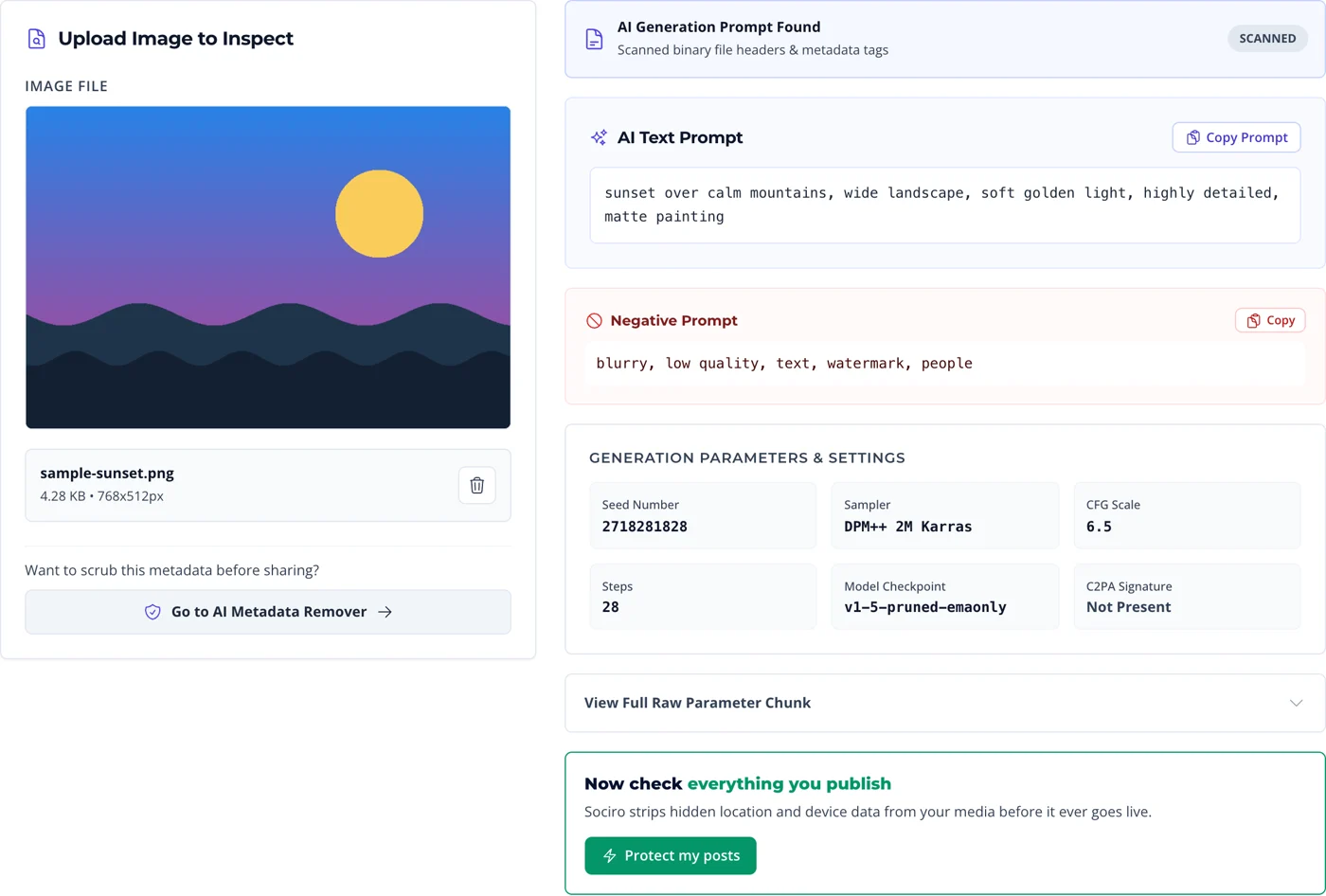
- Open the AI Image Metadata Viewer.
- Drag your PNG, JPEG, or WebP file into the dropzone.
- The parser walks the binary header, reads every text chunk and EXIF/XMP/IPTC block, and detects a C2PA manifest if one is present.
- Read the parsed cards: prompt, negative prompt, seed, steps, sampler, CFG scale, model and model hash, dimensions, and generator fingerprint.
- Hit Copy Prompt to lift the prompt straight into your own workflow.
Because the file is decoded in your browser, the image never leaves your machine. That matters more than it sounds: prompts routinely carry unreleased product names, client briefs, and internal project codenames, and uploading them to a server you do not control is exactly how those leak.
Read any AI image in seconds
Prompt, negative prompt, seed, sampler, CFG scale, model hash and C2PA status, decoded in your browser. Nothing uploaded, nothing stored, no signup needed.
Why the manual approaches disappoint
You will find advice suggesting you open the file in a text editor or install a command-line utility. Both technically touch the data. Both fall down on real work:
- A text editor sees one layer out of five. Uncompressed
tEXtis loosely readable, butzTXtis compressed binary, UTF-8 prompts arrive mangled, and EXIF, XMP, IPTC and C2PA are structured binary a text editor cannot decode at all. You get a fragment, with no way to know what you missed. - Command-line utilities dump, they do not interpret. They print the parameter string as one undifferentiated blob. Separating prompt from negative prompt from seed from sampler is still on you, file by file, and reading a C2PA manifest needs a separate toolchain entirely.
- Neither identifies the generator. Telling a ComfyUI graph from a Forge parameter string from an OpenAI IPTC marker is pattern recognition, not a flag you can pass.
- Neither travels. They do not work on a phone, on a locked-down work laptop, or on the machine of the client who just asked you whether an image is AI-generated.
A purpose-built viewer reads all five layers in one pass, fingerprints the generating engine, and hands back labelled fields you can copy. Same job, done once, on any device.
How to read Stable Diffusion parameters
Here is what the viewer is decoding for you. A Stable Diffusion parameters block is positional: prompt first, negative prompt on its own labelled line, then one comma-separated line of settings.
a cinematic photo of an astronaut riding a futuristic neon motorcycle on Mars at dusk, highly detailed, 8k resolution, photorealistic
Negative prompt: blurry, low quality, distorted, extra limbs
Steps: 30, Sampler: DPM++ 2M Karras, CFG scale: 7, Seed: 3849201948, Size: 1024x1024, Model hash: e4a2d1f9, Model: v1-5-pruned-emaonly, Denoising strength: 0.45, Clip skip: 2
What each parameter means
| Field | What it tells you | Why it matters when reproducing |
|---|---|---|
| Prompt | The positive text description, including any weighting syntax and LoRA calls. | The single biggest driver of the result. Copy it verbatim, brackets included. |
| Negative prompt | Concepts pushed away from the output. | Often does more work than the positive prompt for clean anatomy and lighting. |
| Seed | The integer that initialises the noise pattern. | Same seed plus same everything else equals a near-identical image. Change it for variations. |
| Steps | How many denoising iterations ran. | Below roughly 20 you get mush; far above it you mostly burn GPU time. |
| Sampler | The scheduling algorithm, for example DPM++ 2M Karras or Euler a. | Different samplers give visibly different results at identical seeds. |
| CFG scale | How strictly the model obeys the prompt. | Low values drift creative, high values over-bake contrast and saturation. |
| Model / model hash | The checkpoint used, plus a short fingerprint of the weights. | The hash is how you identify the exact checkpoint, since filenames get renamed. |
| Denoising strength | Present on img2img and hires-fix renders. | Its presence tells you the image was not a pure text-to-image generation. |
A metadata viewer parses these into labelled cards so you are not counting commas by hand, but knowing the raw shape means you can still read a file when no tool is available.
Reading ComfyUI workflow metadata
ComfyUI does not write the AUTOMATIC1111 parameter string. It embeds two JSON documents instead:
- prompt: the API-format node graph, the executable version of the workflow.
- workflow: the full UI graph including node positions, so dragging the PNG back onto the ComfyUI canvas rebuilds the entire pipeline.
That is why ComfyUI PNGs run several hundred kilobytes larger than the pixels justify, and why sharing one hands over your complete node setup to anyone who downloads it. Raw, that graph is hundreds of lines of nested JSON with node IDs instead of readable labels. The metadata viewer walks it for you and surfaces the conditioning text, the checkpoint, and the sampler settings as plain fields.
Inspecting Midjourney and DALL-E 3 images
Every platform makes different choices, and this is where most guides get vague. Here is what to expect:
- DALL-E 3 and ChatGPT images: no prompt text. OpenAI writes a
Softwareor generator descriptor plus the IPTC tagDigitalSourceType: trainedAlgorithmicMedia, and attaches a signed C2PA manifest of roughly 25-30 KB. You can prove the image is AI-generated; you cannot recover the prompt from the file. - Midjourney: depends entirely on where you downloaded it. Files saved from the web gallery have historically carried the prompt text in the EXIF or XMP
Descriptionfield along with a job UUID and version descriptor. Images re-uploaded through Discord are usually re-encoded and arrive stripped. If you are hunting a Midjourney EXIF prompt, always test the original download, not a copy pulled from a chat client. - Adobe Firefly: full Content Credentials manifest with ingredient history, edit actions, and the producing application, but no user prompt in plain text.
- Stable Diffusion, local: the most generous by far. Full prompt, negative prompt, and every sampler setting, unless the user disabled metadata saving in settings.
How to check C2PA metadata online
C2PA (Coalition for Content Provenance and Authenticity) is a signed record of where an image came from. Unlike EXIF, which anyone can edit in seconds, a C2PA manifest is cryptographically sealed: alter the pixels and the signature no longer validates.
When you run an image through the metadata viewer, a C2PA badge tells you whether a manifest is present and which issuer signed it. Three outcomes are worth distinguishing:
- Valid manifest: the file carries an intact provenance chain naming the generating tool.
- No manifest: tells you nothing on its own. Most platforms strip C2PA during upload compression, so absence is not evidence the image is authentic.
- Broken signature: the file was modified after signing. Sometimes malicious, far more often just a resize or a re-save.
This matters for distribution: Instagram, Facebook, Threads, LinkedIn, and YouTube read C2PA manifests and can attach an "AI info" label to your post automatically. If you publish AI-assisted creative, that label is decided by the file you upload, not by anything you type in the caption. Our companion guide on C2PA and AI content provenance covers the standard in depth.
Why an AI image sometimes has no metadata at all
You dropped a file into a viewer and got nothing back. That is common, and it is almost never the tool's fault. The usual culprits:
| What happened to the file | Effect on metadata |
|---|---|
| Downloaded from Instagram, Facebook, X, or WhatsApp | Re-encoded on upload. Text chunks and most EXIF are gone. |
| Screenshotted instead of downloaded | Total loss. A screenshot is fresh pixels with your device's own metadata. |
| Converted PNG to JPEG or WebP | PNG text chunks do not survive the format change. The prompt is gone. |
| Passed through an image CDN or CMS optimiser | Most pipelines strip metadata by default to save bytes. |
| Author disabled metadata in their generator settings | Nothing was ever written. |
| Cleaned deliberately with a metadata remover | Re-encoded from raw pixels. Nothing recoverable. |
The practical rule: always inspect the original file. A file that has been through a social platform tells you almost nothing about how it was made.
Is it legal to extract prompts from someone else's AI image?
Reading metadata that a publisher chose to leave in a public file is not hacking, and it is exactly what the format was designed to allow. The reasonable line sits further along:
- Fine: studying a prompt to learn a technique, verifying provenance before republishing, auditing your own archive.
- Not fine: passing someone's prompt off as your own, scraping an artist's catalogue to clone their style commercially, or stripping a C2PA manifest to disguise AI-generated content as a photograph.
And if you would rather not hand your own prompts to everyone who downloads your work, that is a one-step fix, covered next.
How to remove metadata before you publish
Once you have inspected a file, you may well decide it should not ship as-is. Stripping metadata protects prompt engineering you spent real hours on, removes unreleased brand names and client context from the file, and trims kilobytes off every page load. Run it through the free AI Metadata Remover to re-encode a clean copy, or read the full walkthrough in how to remove AI metadata from images.
Frequently asked questions
How do I see the prompt used in an AI image?
Open the image in an AI metadata viewer. If it is a Stable Diffusion PNG, the prompt is stored in a text chunk called "parameters" and will be shown in full along with the negative prompt, seed, and sampler. If the image came from DALL-E 3 or Firefly, the prompt is not stored in the file at all, only a marker identifying it as AI-generated.
Can you extract a prompt from a JPEG?
Sometimes. JPEG does not support PNG text chunks, so a Stable Diffusion prompt is lost the moment the render is converted to JPEG. However, JPEG does carry EXIF, XMP, and IPTC, so Midjourney web downloads and other tools that write the prompt into the Description field can still be read.
Why does my AI image show no metadata?
Almost always because the file was re-encoded after generation. Social platforms strip metadata on upload, screenshots discard it entirely, and converting PNG to JPEG or WebP drops the text chunks. Test the original downloaded file rather than a copy that has passed through another service.
Does Midjourney store the prompt in EXIF?
It depends on the download path. Images saved directly from the Midjourney web gallery have carried the prompt in the EXIF or XMP Description field along with a job ID and version tag. Images re-shared through Discord or a social platform are typically re-encoded and arrive with that data removed.
How do I check C2PA metadata online?
Upload the file to a metadata viewer that reads the C2PA manifest, stored in a caBX chunk in PNG or an APP11 segment in JPEG. The viewer reports whether a signed manifest is present, which issuer signed it, and whether the signature still validates against the current pixel data.
Does taking a screenshot remove the AI prompt?
Yes, completely. A screenshot captures rendered pixels and writes an entirely new file with your own device metadata. No prompt, seed, or C2PA manifest survives, which is also why a screenshot cannot be used to verify that an image was AI-generated.
Is viewing AI image metadata safe and private?
With a browser-based viewer that decodes the file locally, the image never leaves your device, so private client briefs and unreleased product names in a prompt are not transmitted anywhere. Server-side tools upload the full file, so check where the processing happens before inspecting sensitive work.
Explore more free AI & content creation tools
Sociro provides a complete suite of 100% free AI tools and social media automation utilities to help creators, marketers, and agencies grow their brand online:
- AI & Image Utilities: Inspect hidden image parameters with the AI Image Metadata Viewer, scrub EXIF data with the AI Metadata Remover, generate accessible descriptions with the AI Alt Text Generator, or extract text from photos using AI Image to Text.
- Social Media Content Creation: Generate scroll-stopping posts using our AI Caption Generator, find viral tags with the AI Hashtag Generator, draft tweets with the AI Tweet Generator, craft engaging headlines with the AI Hook Generator, add expressiveness with the AI Emoji Translator, and write full posts with the AI Content Generator.
- Writing & Copy Editing Utilities: Polish your copy with the AI Grammar Fixer, rewrite text using the AI Text Paraphraser, adjust writing style with the AI Tone Changer, or condense articles with the AI Text Summarizer.
- Bio & Profile Generators: Create high-converting social bios with our AI Bio Generator, or use specialized tools for Instagram Bio, LinkedIn Bio, TikTok Bio, and X / Twitter Bio.
- All-in-One Social Management: Schedule and auto-publish content across 11+ platforms from one dashboard. Explore Sociro's Complete Features and compare Pricing Plans starting from free.
Key takeaways
- Stable Diffusion writes the full prompt, negative prompt, seed, and sampler into a PNG text chunk named
parameters, in readable plain text. - ComfyUI writes two JSON graphs instead, which reconstruct your entire node pipeline when the PNG is dropped back on the canvas.
- DALL-E 3 and Firefly never store the prompt. They store a signed C2PA manifest proving the image is AI-generated.
- Midjourney prompts survive only in the original web-gallery download, not in re-shared copies.
- Any re-encode (screenshot, format conversion, social upload, CDN optimiser) destroys all of it.
Inspect it, clean it, then schedule it
Check what is hidden in any image with the free AI Metadata Viewer, strip it before publishing with the AI Metadata Remover, then let Sociro publish the finished post across 11+ platforms on a schedule you set once.
Create your free Sociro account See pricing
Free plan available. No card required.