
Connect Claude to Sociro
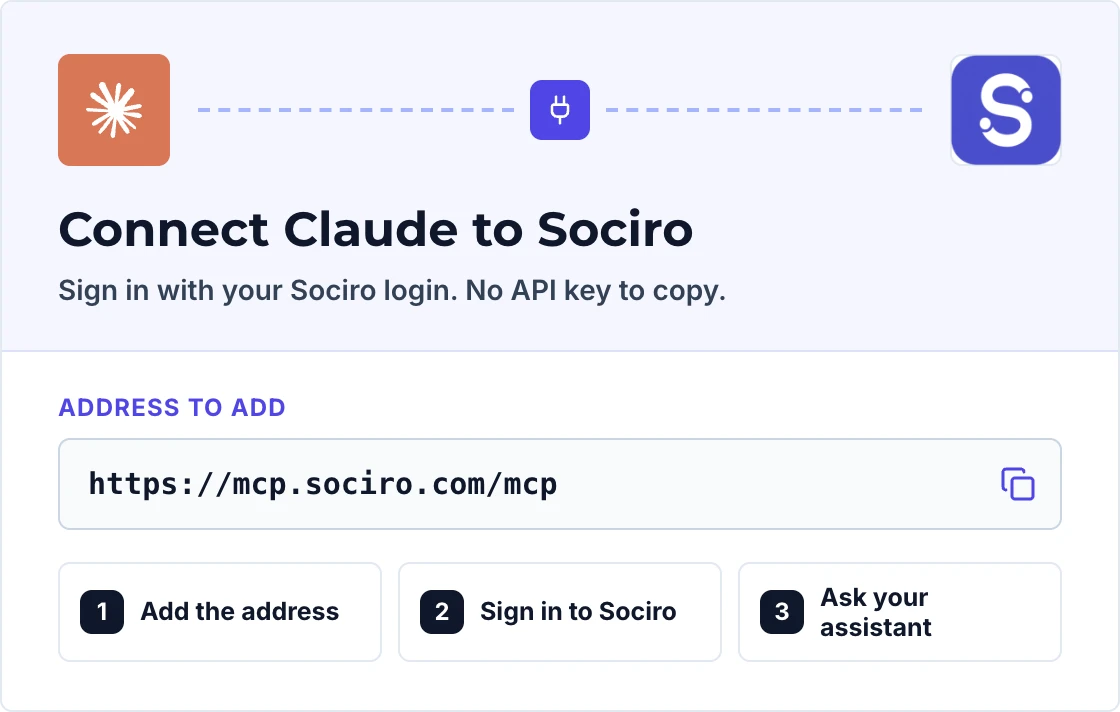
Add Sociro to Claude as a custom connector and sign in with your Sociro login. There is no API key to copy.
Before you start
- A Sociro account on a paid plan
- Your Sociro login. You must be the workspace owner or an admin to connect an assistant
How to connect Claude to Sociro
- 1
Open Connectors in Claude
In Claude, open Settings, then Connectors, and choose Add custom connector.
- 2
Enter a name and the Sociro address
Give it a name, for example Sociro, and paste the address below. Leave everything else empty, then choose Continue and connect.
Addresshttps://mcp.sociro.com/mcp - 3
Choose what Claude may do, then allow it
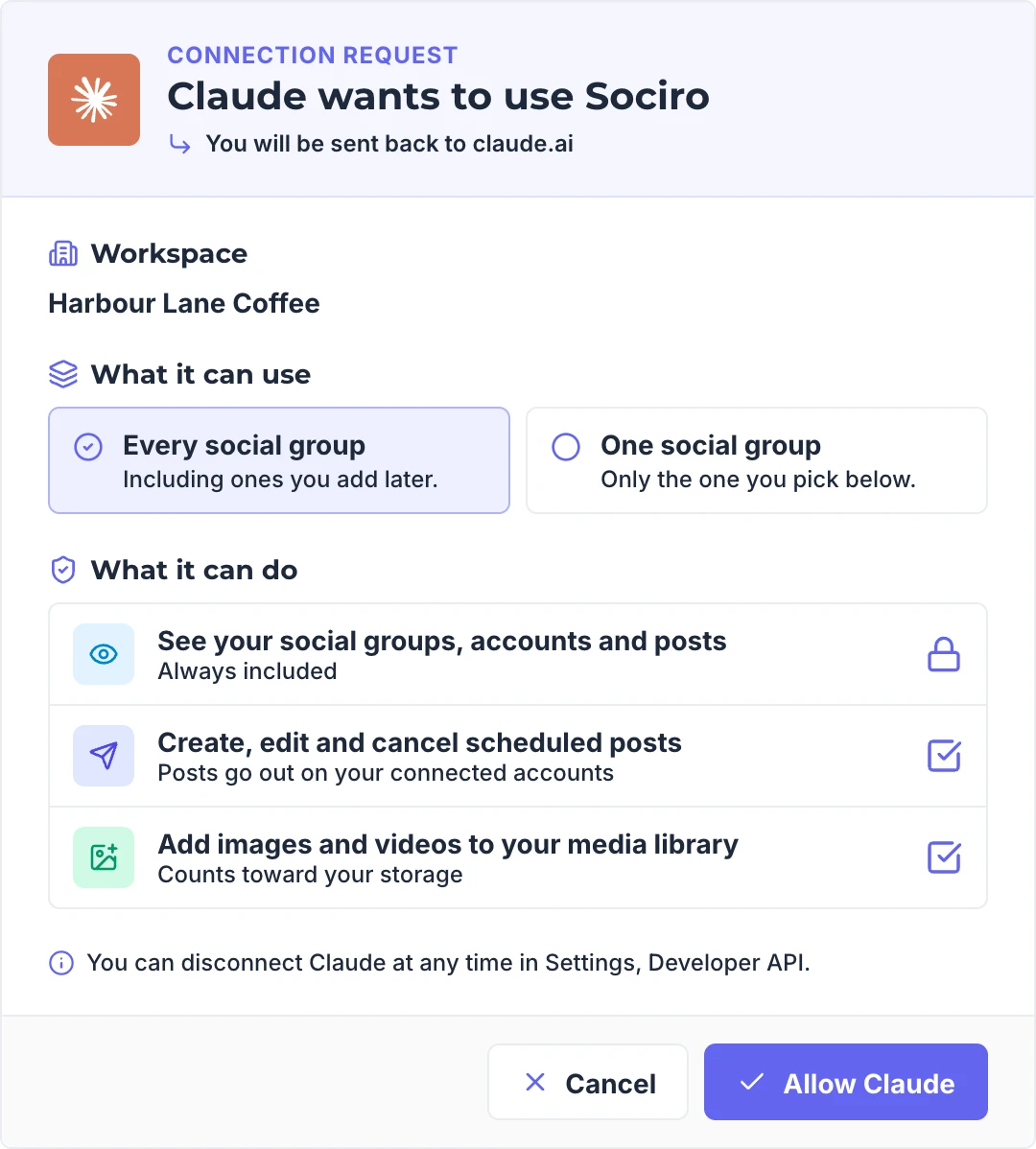
Your browser opens Sociro. Sign in if you are asked to. Choose the workspace, every social group or one, and what Claude may do: see your accounts and posts, schedule posts, add media. Then choose Allow.
- 4
Ask your first question
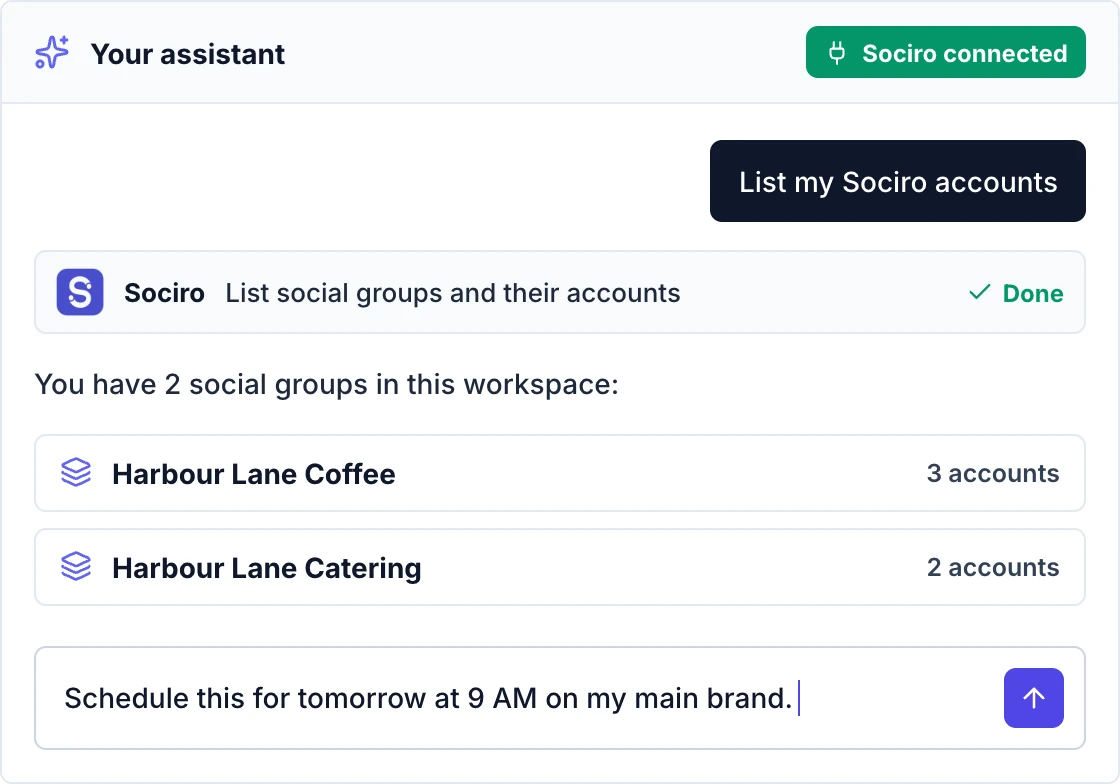
Start a new chat and ask: List my Sociro accounts. You get your brands and the accounts in each. From there, ask it to schedule a post.
- 5
See or stop the connection in Sociro
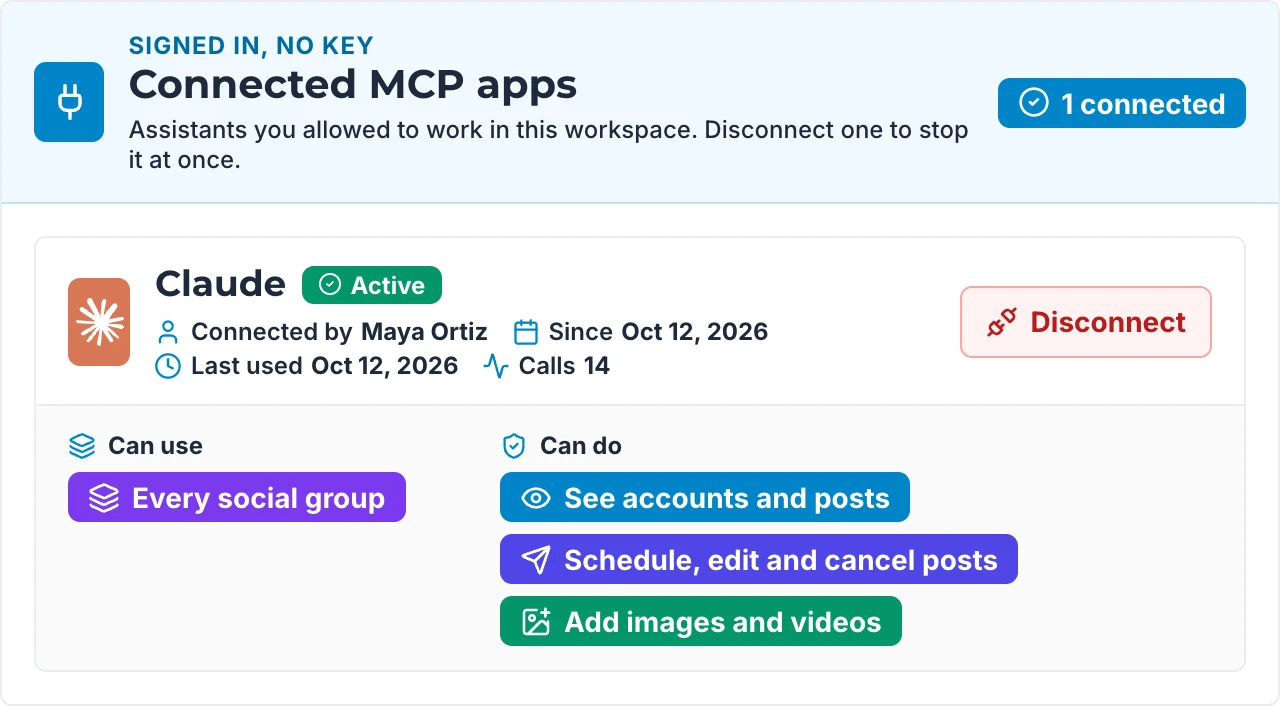
In Sociro, open Settings, then Developer API. The assistant is listed under Connected MCP apps with what it can use and do. Disconnect stops it at once.
Good to know
- Claude allows one connector per address. If you add the same address twice, Claude tells you a connector with this URL already exists: use the one you have.
- Claude may ask you to approve each action, depending on the connector's permission settings in Claude.
If something goes wrong
- Sociro says only the workspace owner or an admin can connect an app
- You are signed in as a member. Ask the workspace owner or an admin to connect the assistant, or sign in as one.
- Sociro says connecting apps needs a paid plan
- Connecting an assistant is part of the Developer API, which is on paid plans. Upgrade the workspace, then connect again.
- The assistant says a connector with this address already exists
- Some assistants allow one connector per address. Use the one you already added instead of adding it again.
- The assistant stopped working and asks you to sign in again
- A sign-in renews itself, so this means the connection ended: it was disconnected in Sociro, the person who approved it left the workspace, or a year passed since it was approved. Connect again and allow it.
- The assistant cannot see one of your brands
- The connection was limited to one social group. Disconnect it in Sociro under Settings, Developer API, then connect again and choose every social group.
- The assistant can list posts but cannot schedule or add media
- That permission was not ticked when you connected. Disconnect, connect again, and tick the things it should be allowed to do.
- You cannot attach a file in the chat
- On the web, add an image by giving the assistant a link to it. Uploading files from your computer needs the local server.
- A post did not go out
- Ask the assistant for the post's status. It shows the result on each account and the reason if one failed.
What to ask Claude once it is connected
Ask in plain words. These are the things the connection can do:
List social groups and their accounts
Shows every social group (brand) your connection can use and the accounts in each.
"Show my brands and their accounts."
Add an image from a link
Adds an image to your Sociro media library from a link, ready to post.
"Add this image to Sociro: https://example.com/picture.png"
Set a video's thumbnail
Sets or replaces the thumbnail of a video in your library. It can also be used as the cover on platforms that take one.
"Use this image as the thumbnail for that video."
Schedule or publish a post
Schedules a post for later or publishes it now, to one or more accounts of a brand. Supports a first comment, a video cover, and the title, description and privacy options some platforms need.
"Schedule this for tomorrow at 9 AM on my main brand."
Get one post
Shows a post's status on each account, its public links once published, and the reason if it failed.
"Did yesterday's post go out? Give me the links."
List posts
Lists your posts by status, date and brand.
"What is scheduled this week?"
Edit a scheduled post
Changes the caption or the time of a post that has not gone out yet.
"Move that post to 8 PM."
Cancel a scheduled post
Cancels a post that has not gone out yet.
"Cancel that post."
You stay in charge
- Nothing is published by accident: a post needs a time, or a clear instruction to publish now
- No double posts: if the assistant repeats a request, the post that already exists is returned
- Your assistant asks before it posts, edits or cancels, when your app is set to ask for approval
- A connection can only do what you allowed when you signed in, or what your API key can do, and your plan's limits apply
- A sign-in is short-lived and renews itself. Only the workspace owner or an admin can approve one, and it stops if they leave the workspace
- The server stores no key and nothing about you between requests
- A link to a private or local address is refused when adding an image